Features (the real explanation)
This is the longer page. The “I actually want to understand it” page. Use the contents on the left to jump around — skim it, read it deeply, do whatever feels right.
VAULT
Let’s start with the vault — the place where your sensitive stuff lives.
WQR is a password manager, but it’s not only about passwords. We also support documents, and we’re building a proper place for passkeys so your future can be less “password-shaped”.
Passwords
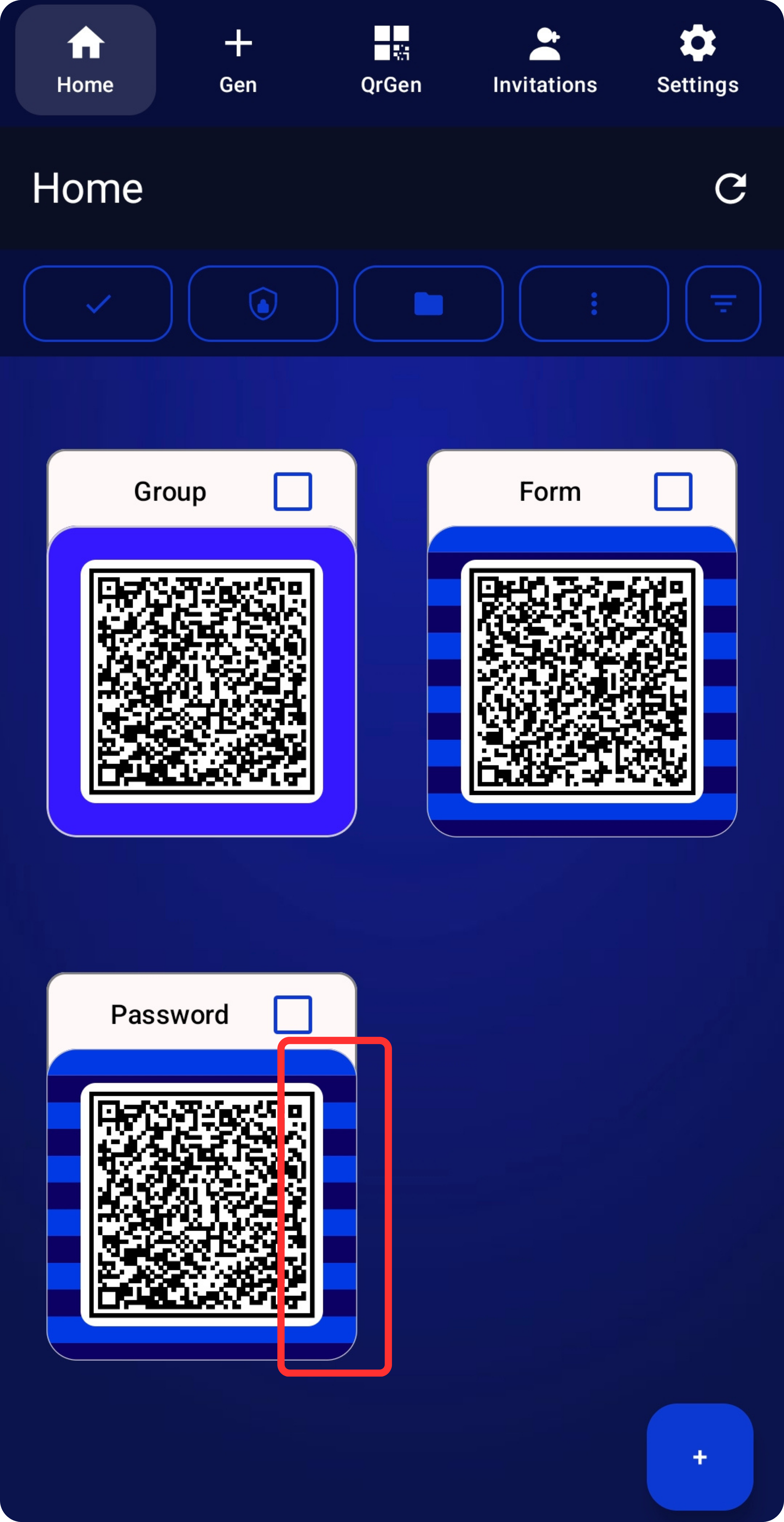
In WQR, your password is saved inside our own WQR codes — not as a link, not as a “pointer”, not as something your phone can casually preview. The password is actually inside the code.
And no, these aren’t standard QR codes. They’re our format. So a random QR scanner app won’t just read them.
Here’s the fun part: because we value protection, WQR is server-assisted. The server helps with an additional encryption step — but we do not store your passwords or your vault on the server. Everything stays on your device.
Why do this? Because if someone snoops around your phone storage, they shouldn’t “accidentally” stumble into readable secrets. They’ll see a WQR image — not your password.
We’re building our own scanning flow, and we’re testing it hard — because this is our own WQR format.
Right now, the most reliable method is importing/uploading a WQR image you saved or received. That flow works consistently, and it’s what we recommend while camera scanning is still being fully validated.
Master passwords (yes, plural)
Most password managers push the “one master password for your whole digital life” idea.
WQR is a bit… rebellious. Like a teenager that refuses to wear the uniform. (But with better security.)
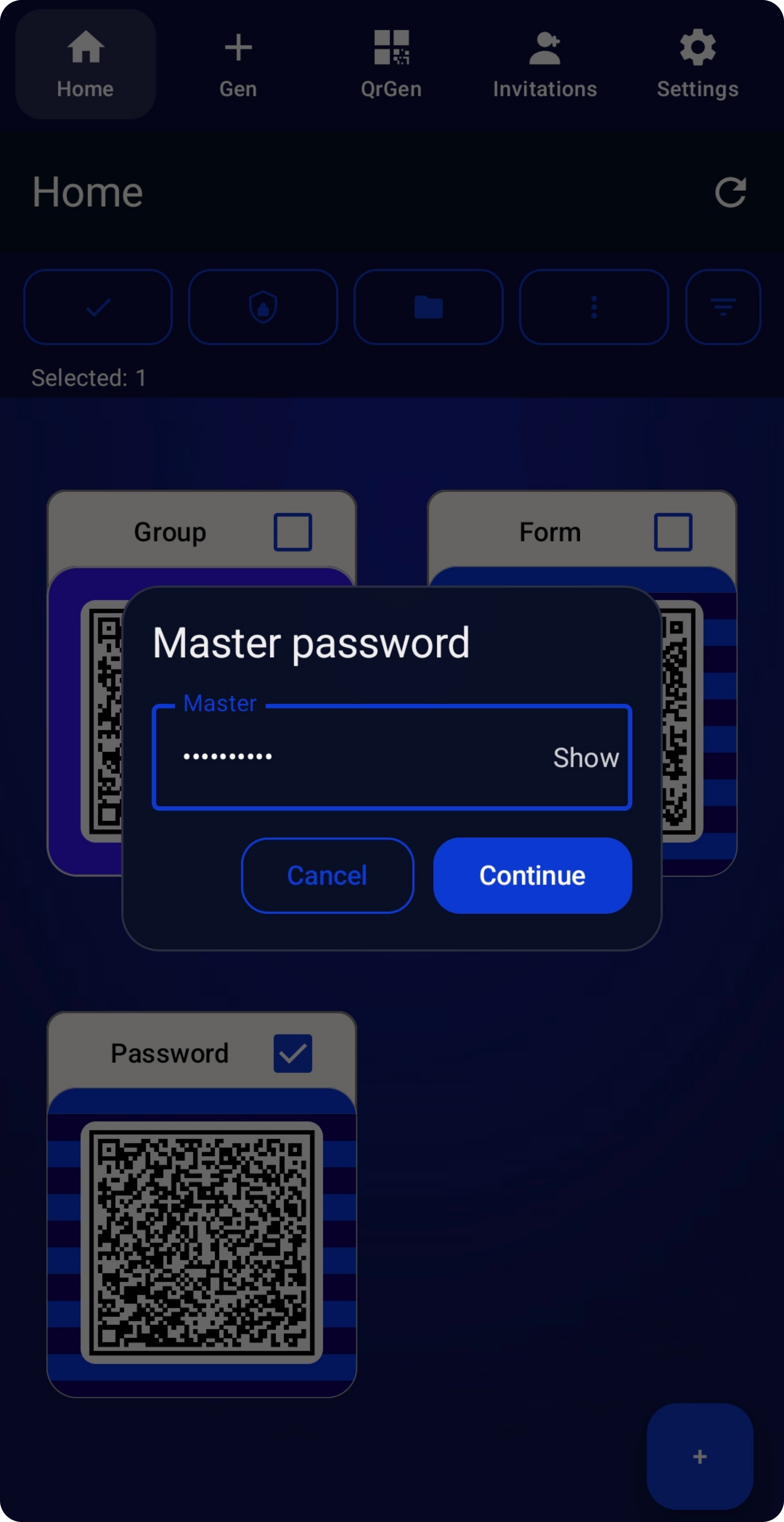
You can reuse the same master password for multiple entries — or you can use a different master password per password/document. You choose.
Why put *everything* behind a single key if you don’t want to? Splitting your vault into multiple master passwords can reduce the blast radius if one password ever leaks.
Documents
Not everything important is a login. Sometimes it’s a bank document, work files, a contract, private notes… or yes — even your secret agency plans. Whatever it is, you want it locked down.
Documents in WQR follow the same idea as the vault: your content stays on your device, and the server assists with additional security operations when needed. That means: server-assisted protection — not an offline-only app — without us storing your vault on the server.
Forms
Forms are your private autofill templates. You save personal data you often need to type: name, surname, email, address… anything like that.
And obviously we don’t leave that info lying around for grabs. Forms are protected behind a password too — because your identity data is just as sensitive as your logins.
Best part: you can create your own custom fields. Build a ‘Job Applications’ form for those boring long questions, a ‘Registrations’ form, a ‘Shipping’ form — whatever you keep typing again and again.
Then you call it when you need it and autofill like a machine. A polite, secure machine.
Passkeys
Passkeys are the direction the world is moving in. Passwords won’t disappear overnight — but they can slowly stop being your daily problem.
WQR includes a dedicated place to store passkeys so you can manage them alongside your vault (without mixing everything together).
It’s our way of saying: keep your passwords safe now — and make room for the passwordless future.
ORGANIZATION
Security is not only encryption. It’s also how you name, group, and recognize things — especially when your vault grows.
WQR gives you organization tools that are actually pleasant to use (and yes, some of them can add extra protection if you want them to).
Naming
You can name entries however you like. You don’t have to label something ‘Facebook’ or ‘YouTube’.
Why? Security. If an attacker doesn’t even know which site a password belongs to, that password becomes far less useful.
And if you use the same password everywhere… please don’t. (We’re not mad. Just disappointed. 😄)
Groups
You can organize entries into groups and rename them anytime. We support up to 4 levels of depth.
For most people, that’s more than enough. And for the few who want even more… well… try a competitor that stops at 2 levels. 🙂
Colors (two-color style)
We love colors. Humans recognize colors insanely fast — sometimes faster than words.
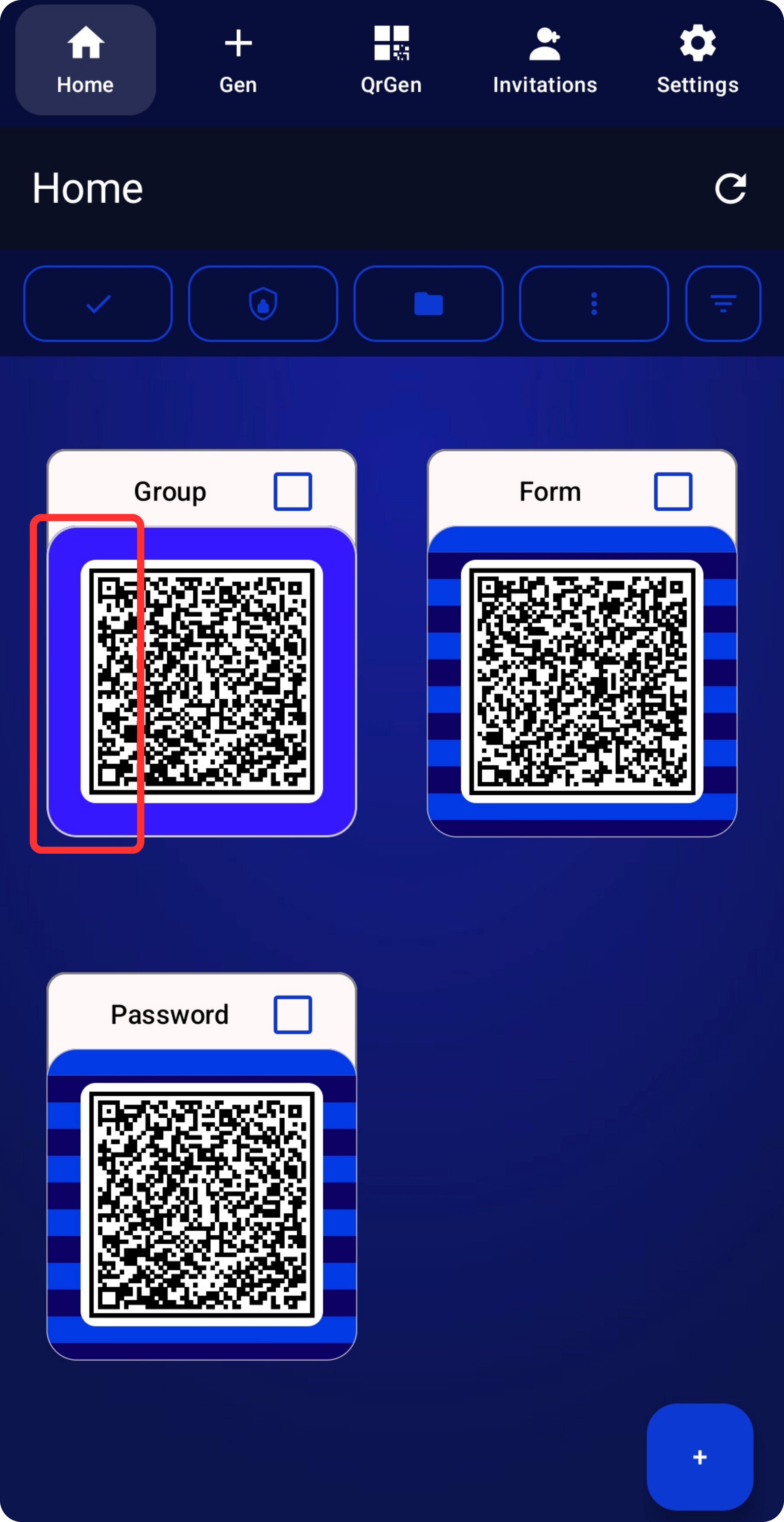
So each WQR entry can use two colors. Yes, two. Your WQR codes can be striped like a retro poster vibe (fun, clear, and quick to spot).
Groups are styled differently, so you don’t confuse a group with an entry. Your eyes will learn it fast.
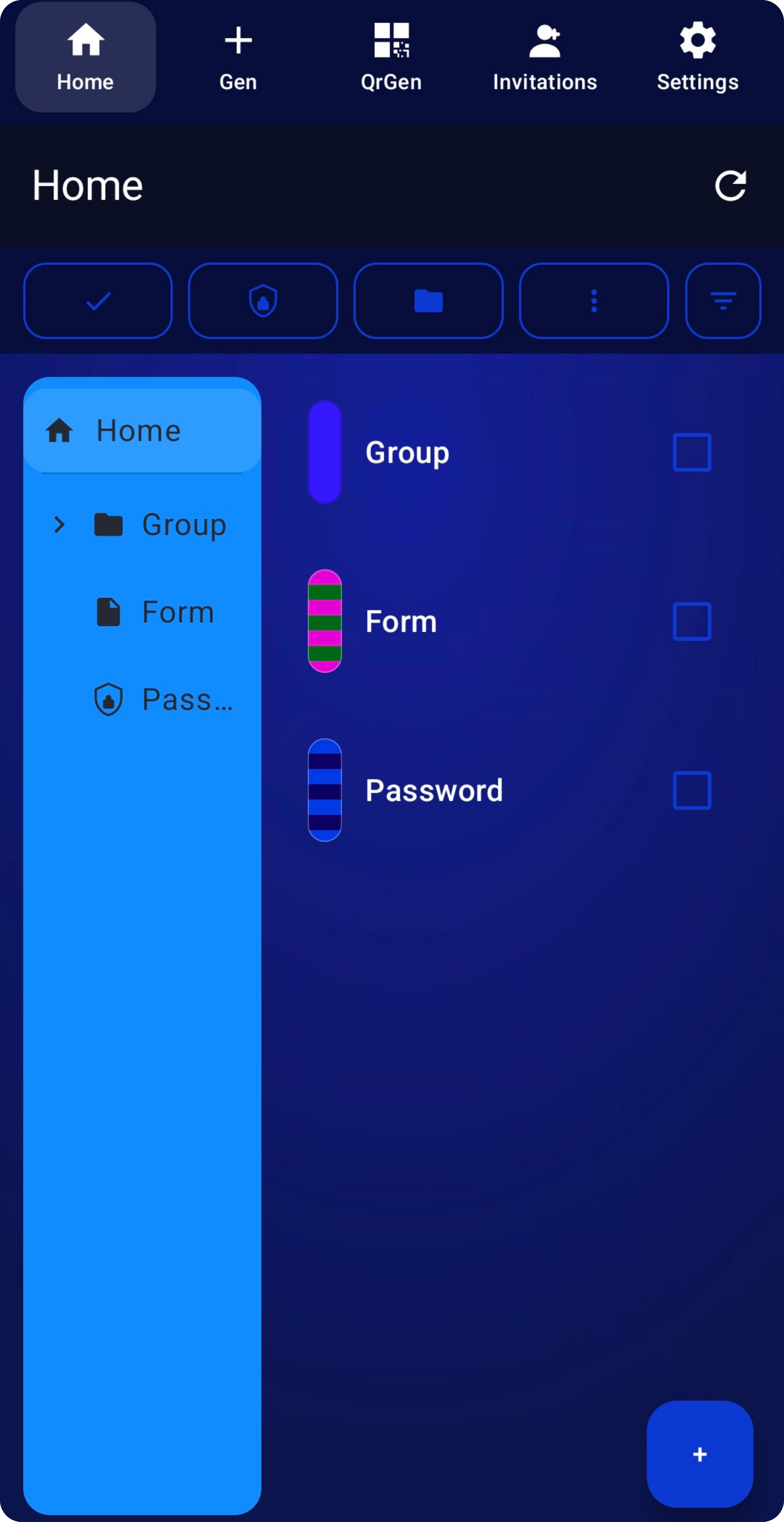
Lists view
Sometimes you want big WQR visuals. Sometimes you just want a clean list with names and colors.
Switch views whenever you want — it’s your vault, not a museum exhibit.
Side tree
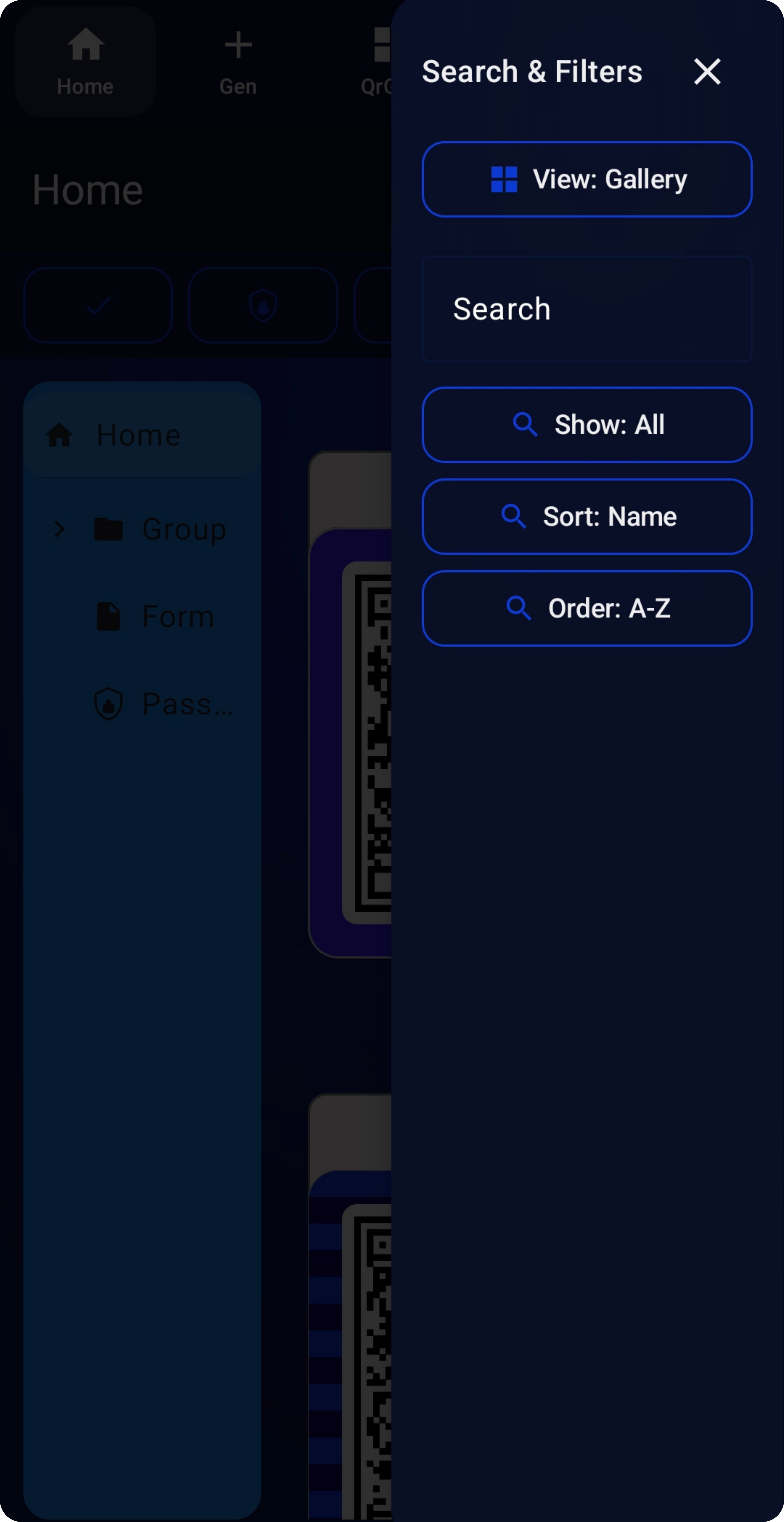
You can enable a side tree that shows your groups and entries in a classic folder-style overview.
It stays out of the way when you don’t want it — and becomes your navigation superpower when you do.
TRANSFER
Your WQR codes are real files. That means you can move them, back them up, and load them on another device.
This is freedom — with one important rule: be smart about how you share master passwords.
Send / move WQR codes
You can save WQR codes, send them to yourself, or move them to another device and upload them there.
If you send a WQR code to someone else: don’t send the master password through a chat app. Tell it in person or via a method that doesn’t leave an easy trace.
Import / Export
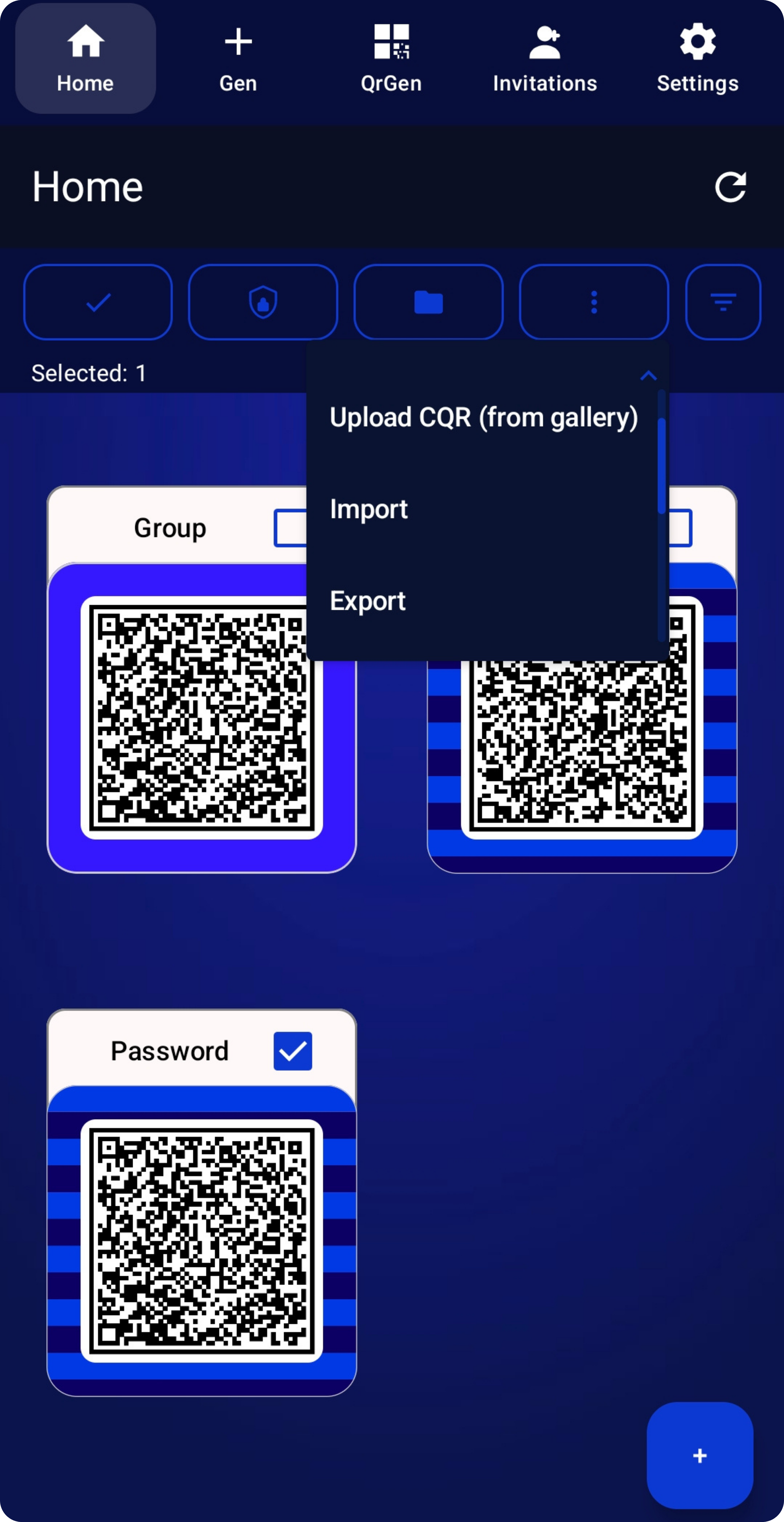
Moving WQR codes is great — but sometimes you want to move *data*, not just files. That’s what Import / Export is for.
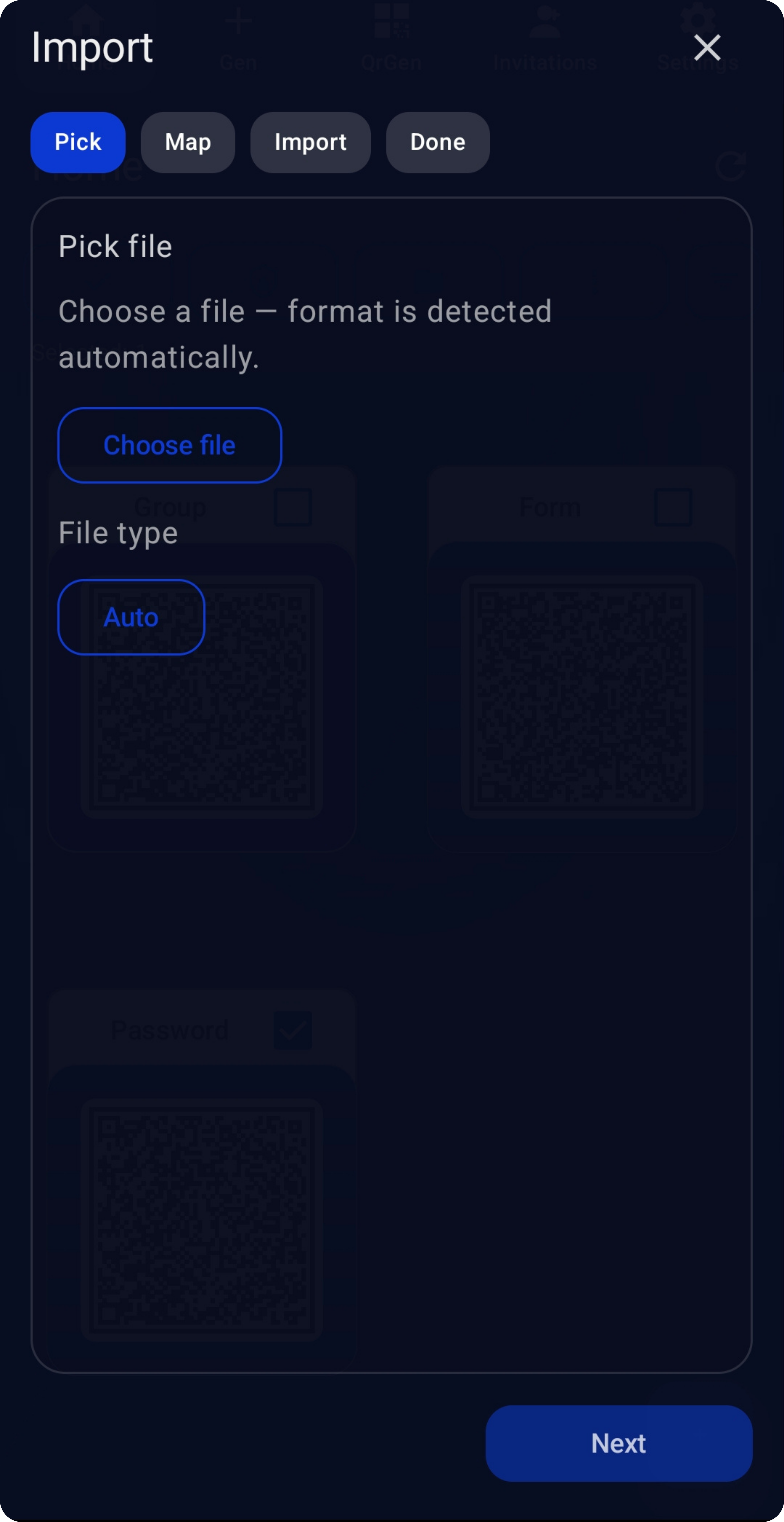
Import passwords from CSV/JSON exports. We try to detect the format automatically — and if the columns are messy, you can map them manually.
Before importing, you can review, edit, and clean up duplicates so you don’t bring chaos into your vault.
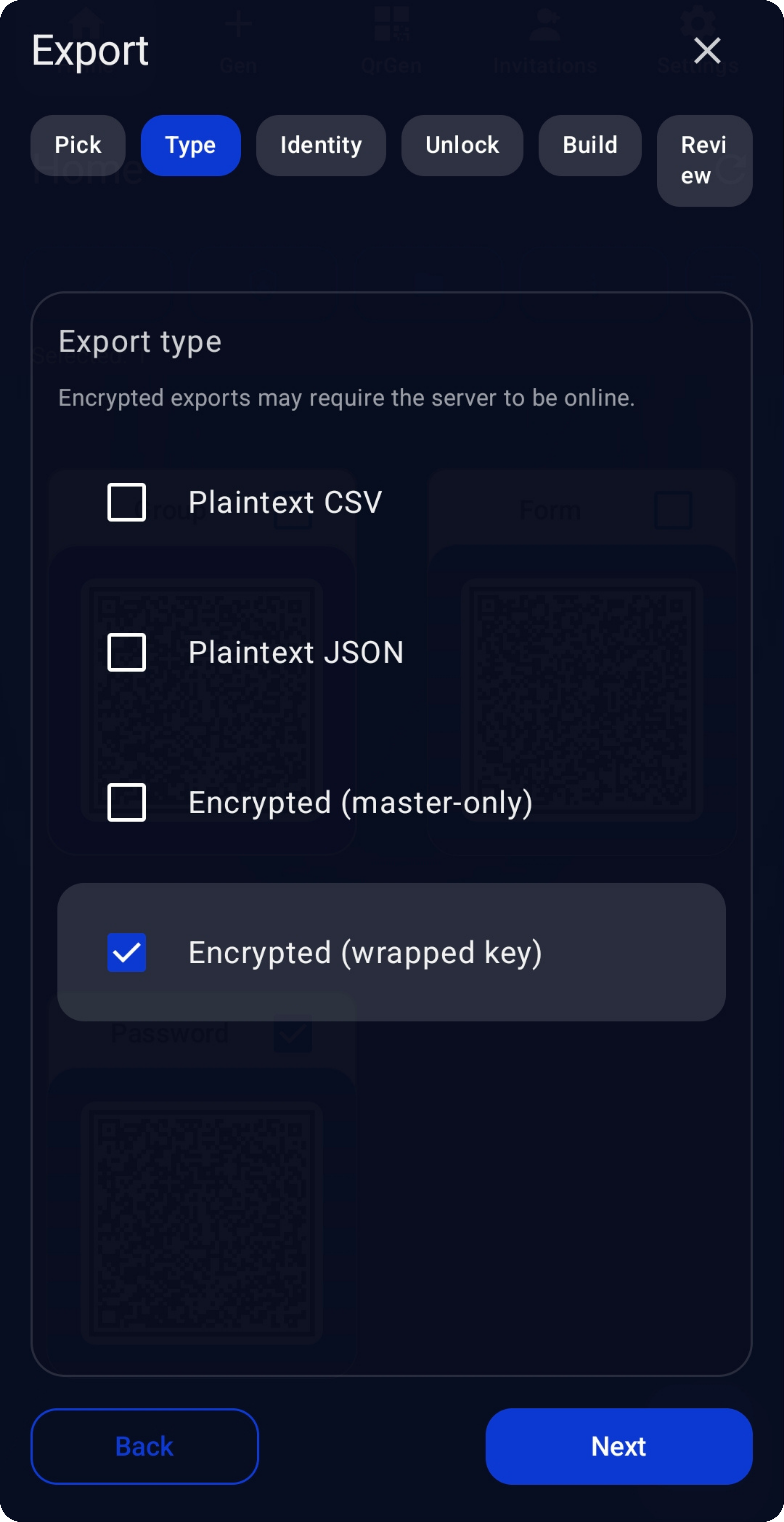
Export selected cards as plaintext CSV/JSON (max compatibility) or as an encrypted WQR export you can import back into WQR later.
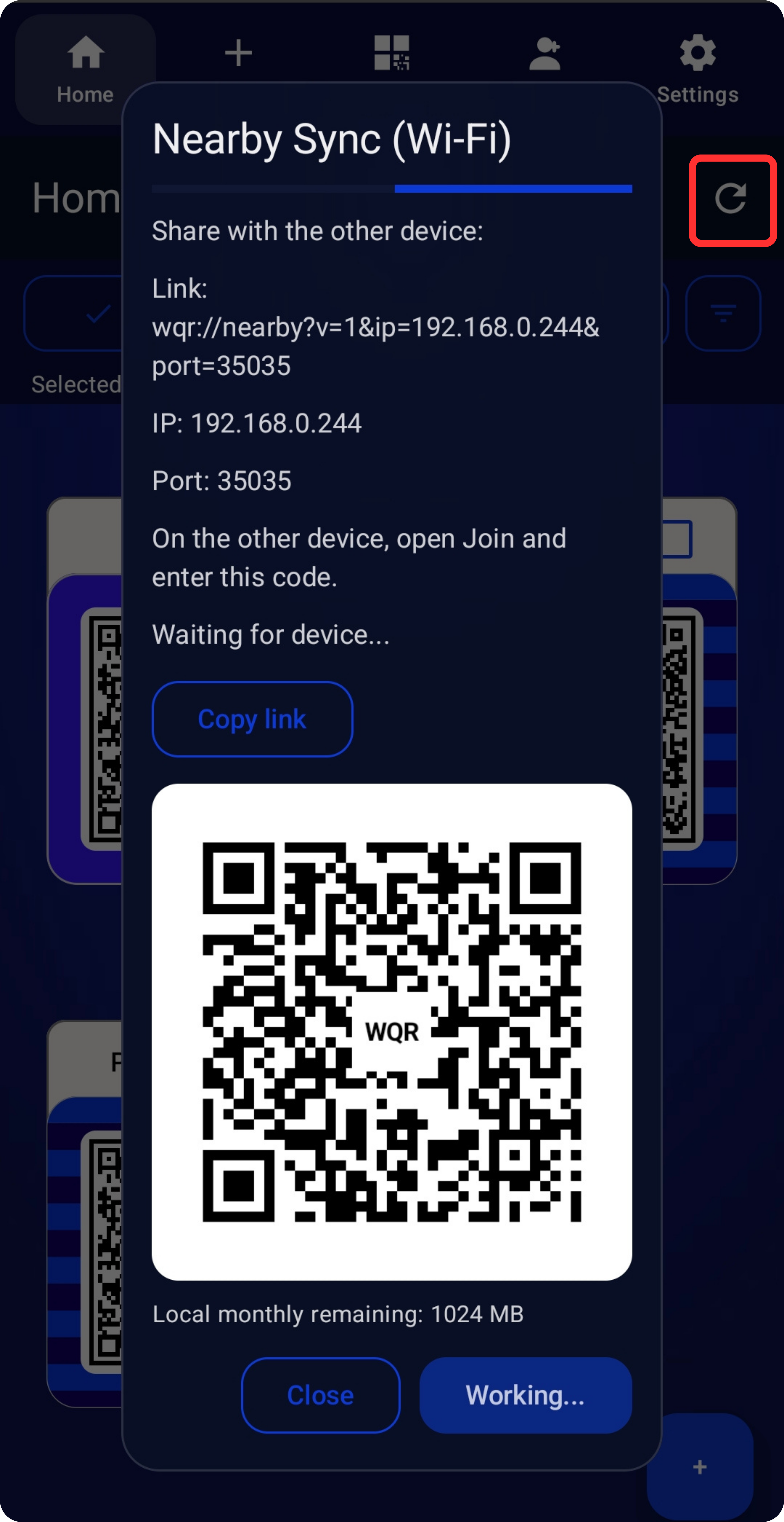
Nearby Sync (Wi‑Fi)
Want the same vault on desktop and phone — without any cloud? Use Nearby Sync over Wi‑Fi (LAN / hotspot).
One device hosts and shows a QR/link, the other joins, confirms a short code, and then both devices sync.
Nearby Sync can carry your groups and WQR files between devices (and passkeys, if you use them).
Sync respects the per‑group Sync toggle, so you decide what should move between devices and what should stay local.
Secure file transfer (Wi‑Fi / Server)
WQR can securely send any file between devices — not just WQR images.
Local (Wi‑Fi): one device hosts and shows a QR/link, the other joins, confirms a short code, and the file is transferred with encryption over your LAN/hotspot.
Server relay: when you’re signed in and not on the same network, you can upload a file to a short‑lived relay session and share a QR/link so the other device can download it.
Recovery
If you lose your master password, your WQR code, your phone — or all of the above — we can’t magically recover it for you. We don’t store your vault server-side, so there’s nothing for us to restore.
That’s the trade: more privacy and control means you also need a backup plan.
We strongly recommend keeping an offline backup (yes, paper is fine) at home, so you can regain access if a device dies or disappears.
And one more tip: your stored passwords should be strong (use a generator). Your master password can be simpler — but still not something like ‘1234’… you know the drill.
AUTOFILL
WQR supports autofill on Android and desktop — so you don’t have to open the app, search, copy, paste, and hope you didn’t mess up.
By default we ask for your master password when autofilling (protection first). If someone grabs your phone, autofill shouldn’t become a free key to your accounts.
Need speed for a short moment? You can temporarily disable the ‘ask master password’ step — just for that quick session — and then turn it back on.
And yes: we still protect you against fake apps and phishing pages. That’s where bindings come in.
BINDINGS (anti-phishing)
We recommend binding entries to websites and apps. It sounds technical — but you don’t need to know the exact format.
We’ll prompt you at the right moment (usually when you log in the first time) and help you bind it correctly.
Once bound, WQR can warn you or block you from entering a password into the wrong app or a fake website. This protects you against a huge category of ‘looks real but isn’t’ attacks.
EXTRA FEATURES
Some features aren’t “classic password manager stuff”… but once you have them, you don’t want to go back.
We’re already living in a QR world — so WQR leans into it (safely).
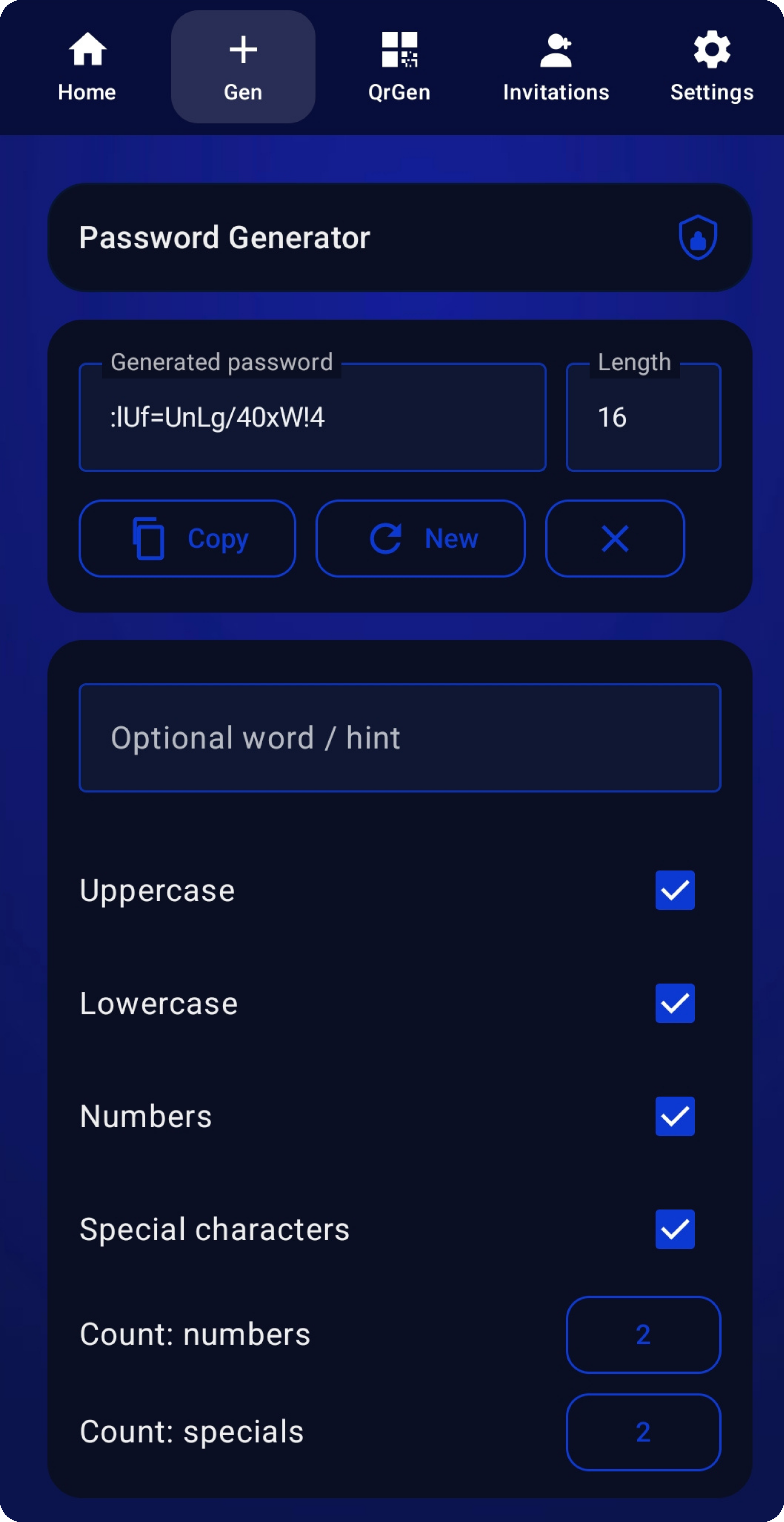
Password Generator
Generate strong passwords you don’t have to think about.
We encourage you to use generated passwords for your accounts — and then keep your master passwords simpler (still not weak, but human-friendly).
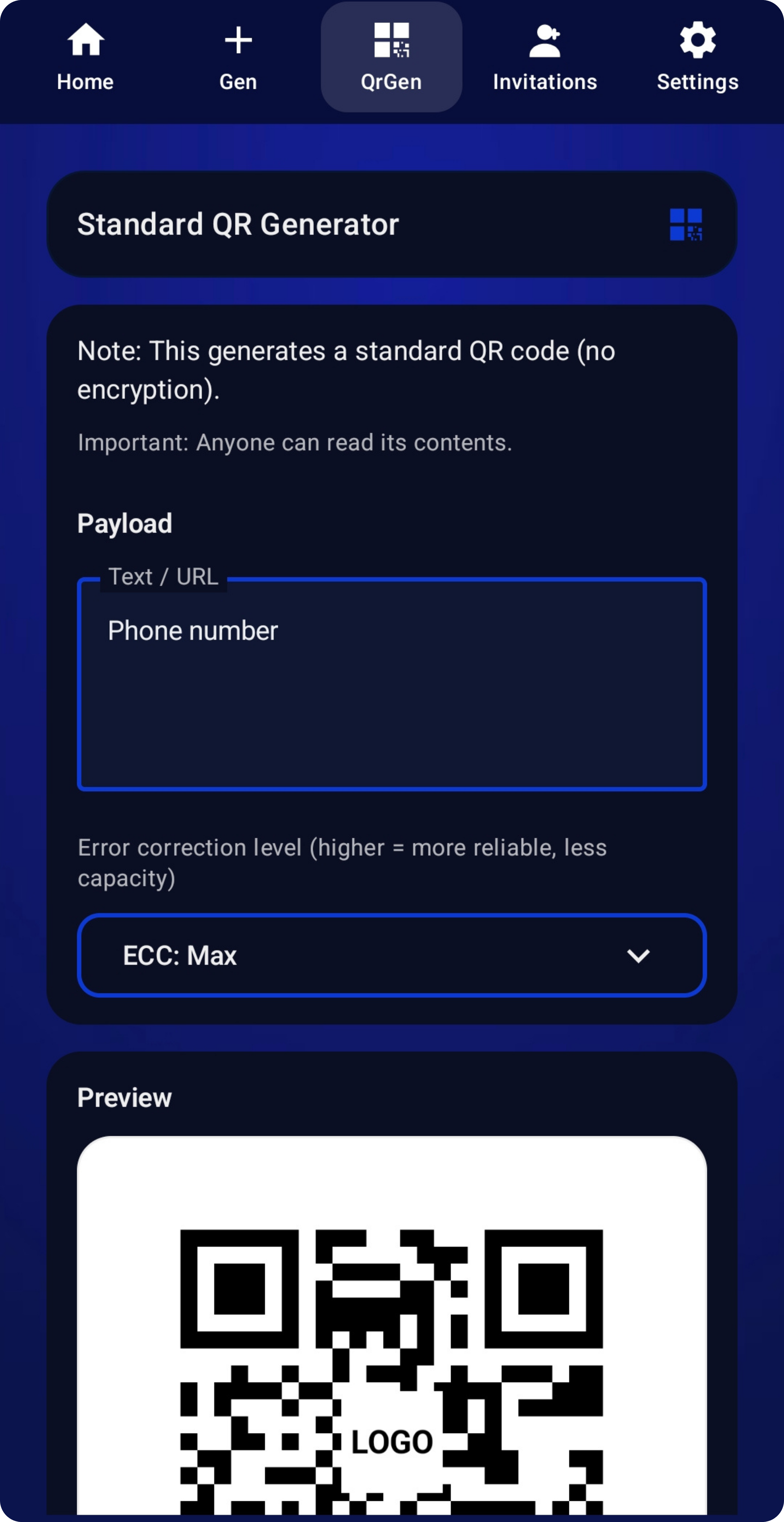
Standard QR code generation
Yes, we also generate normal QR codes — because not having that would be kind of silly for a QR-based app.
Make a QR for your phone number, website, Wi-Fi, business info, or anything else.
Important: do NOT store passwords inside standard QR codes. They are not protected like WQR codes.
WQR Invitations
Need a simple way to control entry for an event? Give guests a WQR invitation code.
No code = no entry. (And yes… random people trying to sneak in is a real thing. Humans are creative.)
Invitations are useful, but they have limitations right now.
We’ll upgrade this into a proper secure system for Standard and Fortified users. Until then: use it, but use it smart.